GPT Image 2.5 Image Generator & Editor
GPT Image 2.5 is OpenAI's image generation and editing model family, available here with Flare and Sunburst. Create product photos and posters from text, or upload a photo to change its background, style, or details. Choose your format and generate images up to 4K.
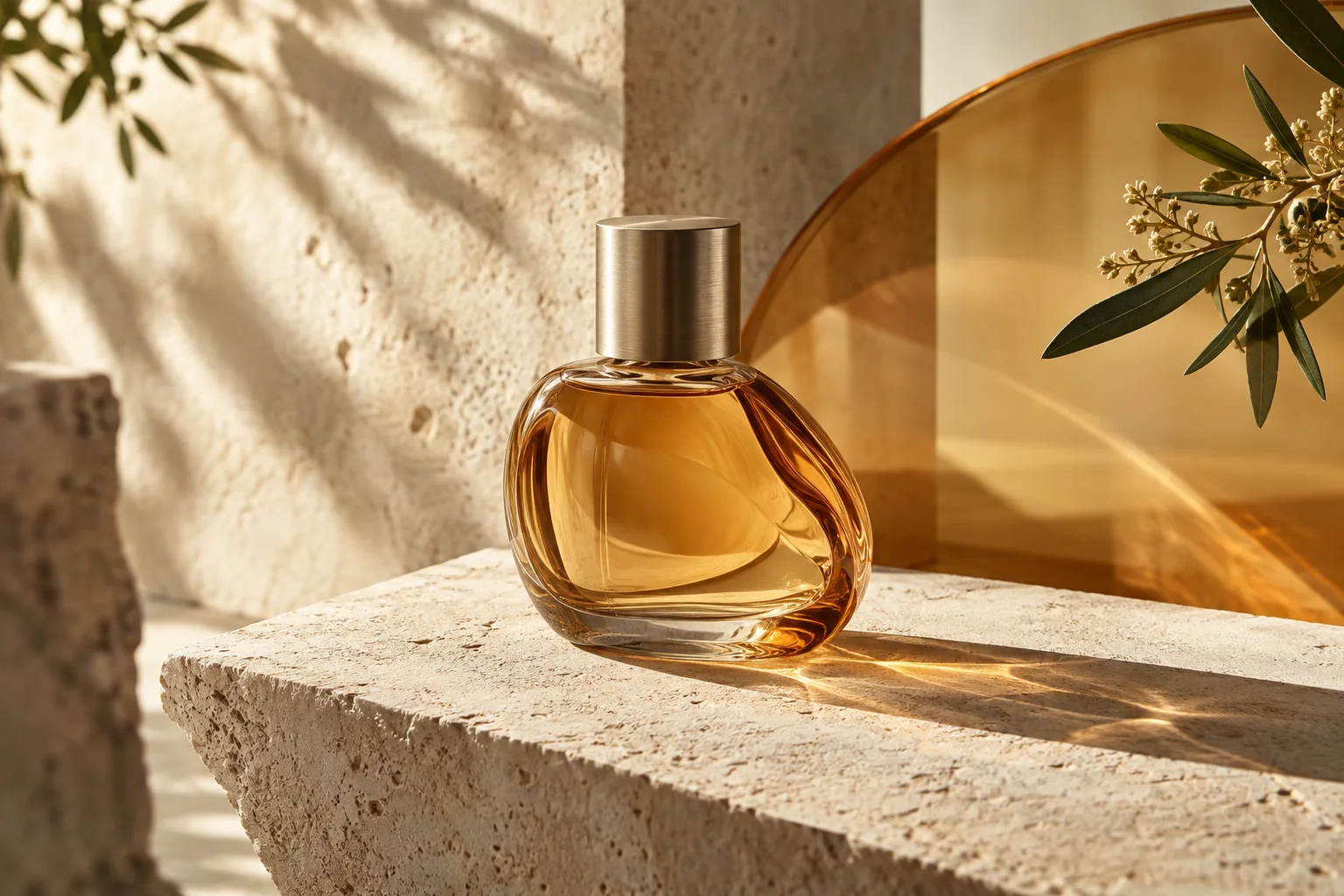
GPT Image 2.5 Flare vs Sunburst
Choose Flare for everyday image creation; choose Sunburst when editing precision matters most. Both generate new images and edit references. OpenAI positions Sunburst for more detailed creative work with longer generation times, making the choice a balance between iteration speed and attention to a specific edit.
| Your task | Start with | Why |
|---|---|---|
| Explore compositions for a campaign or social post | Flare | Its everyday-generation focus suits initial creative exploration |
| Replace a background or adjust a product detail | Sunburst | Its precision-editing focus suits a specific change to a reference |
| Create a poster, then revise its headline | Flare for the initial concept; consider Sunburst for the edit | Choose a version for each stage of the task |
Create with Flare or edit a photo with Sunburst.
Available on ChatGPT Image
- Inputs: a text description or up to 16 reference images.
- Output options: 1K, 2K, and 4K.
- Aspect ratios: Auto, 1:1, 16:9, 9:16, 4:3, 3:4, 3:2, 2:3, 5:4, 4:5, and 21:9.
- Workflows: create a new image or describe changes to an uploaded photo.
What Can You Create with GPT Image 2.5?
Create a new visual from text or give an existing photo a different setting, layout, or style. The concepts below illustrate three practical directions: product images, posters, and editorial photography.
Product Photos with a New Setting
A studio background, a sunlit surface, or a seasonal scene can give the same product a different context. Upload a product photo and describe the new setting. Specify which details must remain, including the product's shape, label, color, and camera angle.
For a product listing, start with 1:1; for a vertical campaign image, consider 4:5. Define the surface, background, and light direction to give the new scene a coherent look. Keep the original product photo as your reference for shape and label details.
Posters and Social Graphics
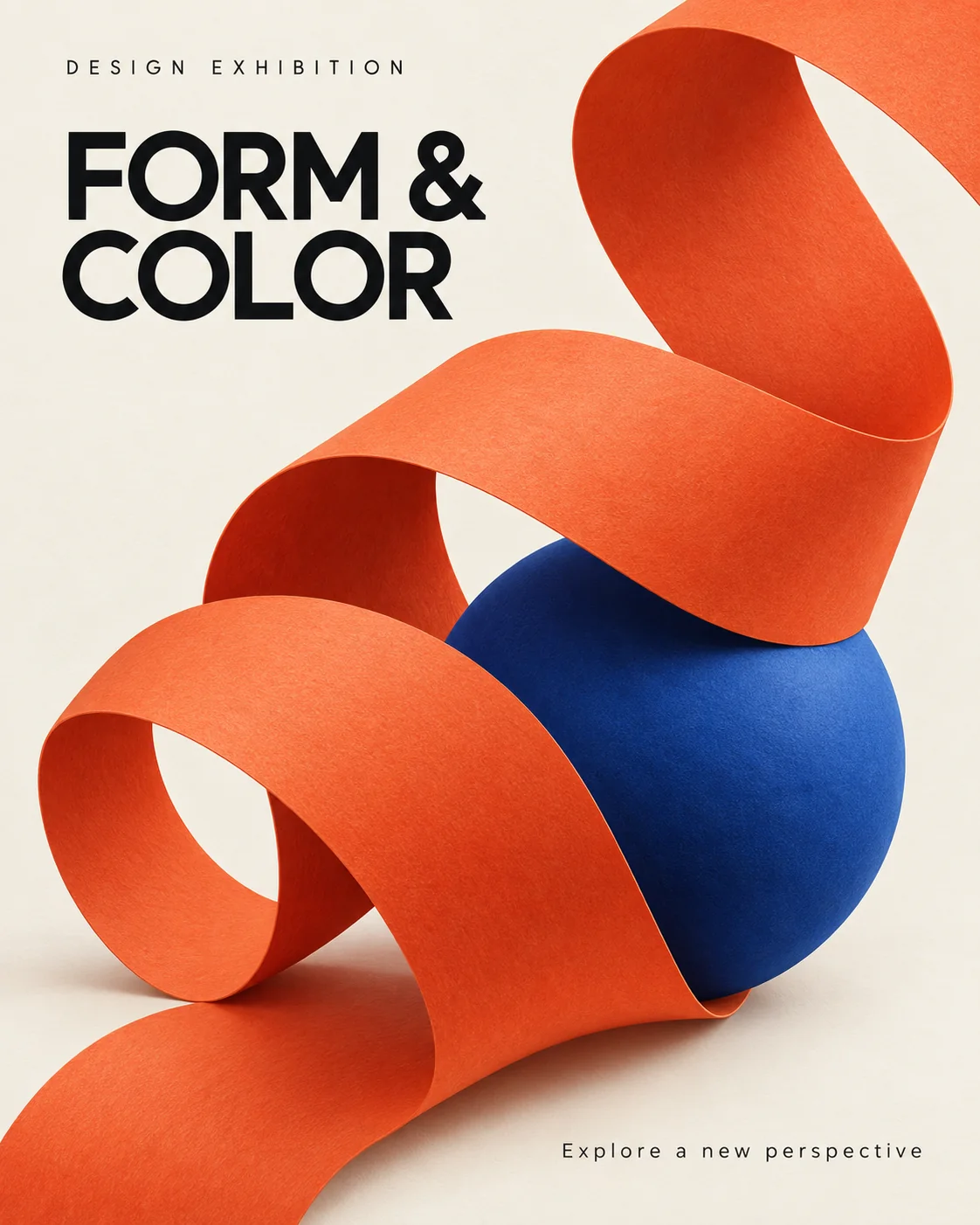
Build event posters, launch graphics, or social posts around a clear headline and focal point. Define the wording, text hierarchy, and placement before generating. For an existing design, upload it and describe the copy or visual element you want to replace.
Choose 4:5 for a vertical feed graphic or 9:16 for a story format. Keep essential text short and allow generous spacing around the headline.
Lifestyle and Editorial Images
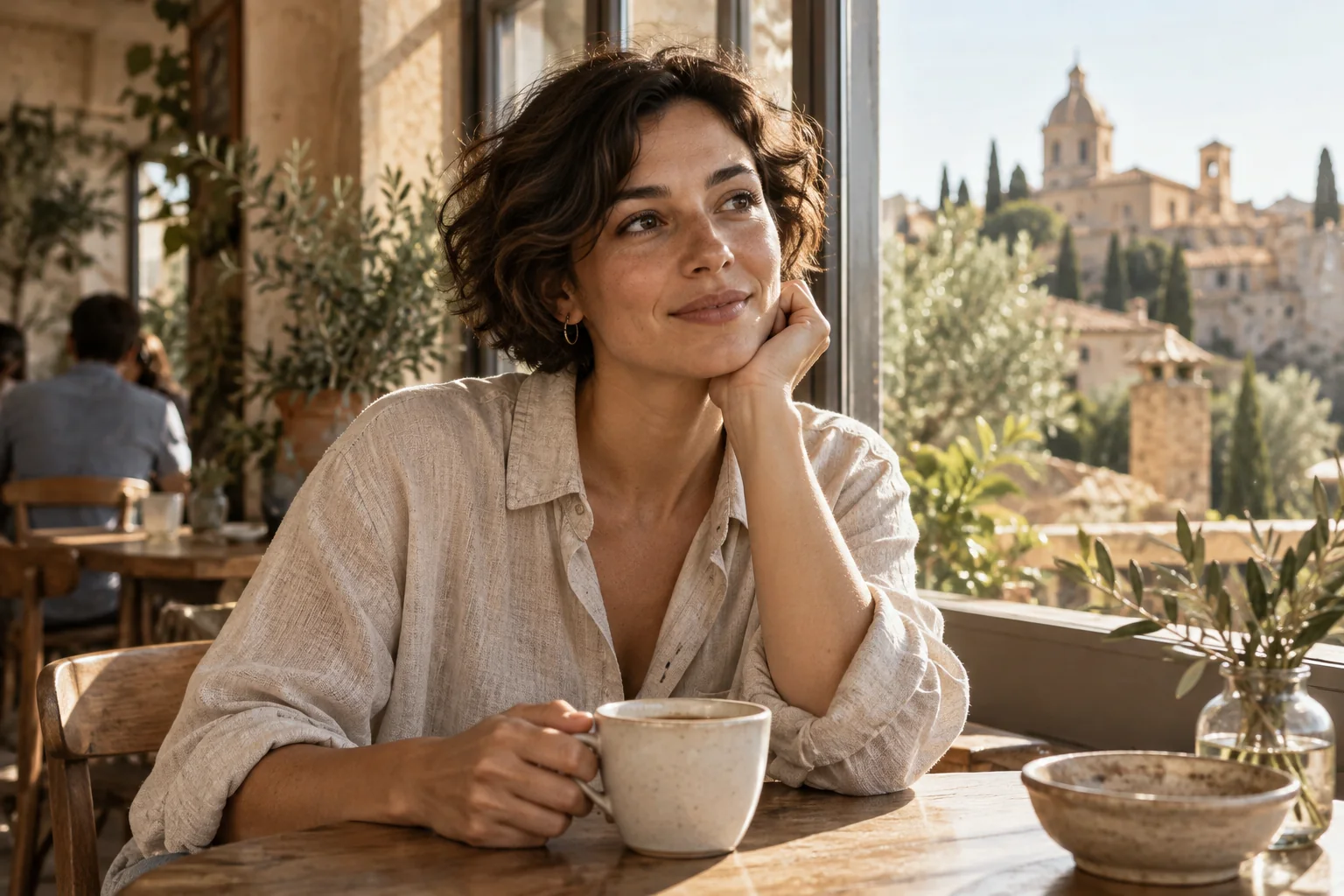
Create portraits, blog illustrations, or campaign concepts by describing the setting, light, framing, and mood. The cafe scene above uses window light and a relaxed pose; a bright outdoor campaign would call for a different background, expression, and color palette.
For reference-led work, assign each image a role: one can guide the subject, another the setting or color palette. Use 3:2 for a landscape photo or 2:3 for a portrait composition.
How to Generate and Edit with GPT Image 2.5
- Choose the workflow. Start in text-to-image for a new concept, or image-to-image to work from a photo.
- Select Flare or Sunburst. Pick a starting point according to the task, then set the aspect ratio and resolution.
- Describe the result. Include the subject, composition, lighting, and required text. For edits, explain both what should change and what must stay.
- Generate, review, and download. Click Generate, then compare the result with your brief and reference images. Refine the request if needed, or download the image when it is ready.
Start at 1K to explore the composition, then select 2K or 4K when you need a larger output. Regenerating at another resolution creates a new result rather than resizing the same file.
Prompt Tips for Reference-Image Editing
Give the model a clear division between the changes you want and the details you need to keep:
| Part of the brief | Details to include |
|---|---|
| Requested change | The object, background, wording, or style to change |
| Details to preserve | Subject identity, product shape, label, camera angle, or composition |
| Reference roles | Which image supplies the subject, setting, or visual style |
| Final format | Intended placement, aspect ratio, and text hierarchy |
Keep each edit focused. When several references disagree, state which one should guide the result instead of asking the model to combine every detail equally.
GPT Image 2.5 vs GPT Image 2
GPT Image 2.5 introduces the Flare and Sunburst choices. OpenAI describes the update as improving reference fidelity and focused editing over GPT Image 2. On this site, both model families support up to 4K, while GPT Image 2 retains extra aspect-ratio options.
| Decision point | GPT Image 2 | GPT Image 2.5 |
|---|---|---|
| Generation and reference editing | Both available | Both available |
| Version choices | GPT Image 2 | Flare and Sunburst |
| Output resolution | 1K, 2K, and 4K | 1K, 2K, and 4K |
| Extra-wide or tall formats | Includes 2:1, 1:2, 3:1, 1:3, and 9:21 | These five ratios are not offered |
| 4:5 and 5:4 output | Limited to 1K | Available at 1K, 2K, and 4K |
Choose GPT Image 2.5 for Flare/Sunburst selection or higher-resolution 4:5 and 5:4 work. Keep GPT Image 2 for a workflow you already like or one of its additional ratios. Its 3:1, 1:3, and 9:21 options are limited to 1K on this site.
GPT Image 2.5 vs Nano Banana Pro
Nano Banana Pro also supports text-to-image generation and photo editing. Two concrete differences in this workspace are the version controls and reference-image limit:
| Available here | GPT Image 2.5 | Nano Banana Pro |
|---|---|---|
| Model choices | Flare or Sunburst | Nano Banana Pro |
| Reference images per request | Up to 16 | Up to 8 |
| Maximum output option | 4K | 4K |
Choose GPT Image 2.5 if your request needs more than eight references or you want Flare/Sunburst selection. With fewer references, Nano Banana Pro is an alternative to try for a different interpretation of the same brief. Compare subject fidelity, lighting, texture, and text rather than treating the reference limit as a quality score.
GPT Image 2.5 Limitations and Editing Tips
Exact text and layout: review spelling, numbers, and small print. For precise brand fonts or editable text layers, use the generated image as a starting point and finish the typography in a design editor.
Details outside the edit: changes may extend beyond the requested area. Compare faces, labels, product geometry, and composition with the source; make the preservation instructions more specific if needed.
Repeated edits: keep the original and useful intermediate versions. If texture or color drifts, return to a cleaner source rather than continuing from an unwanted result.
Factual graphics: verify chart values, diagrams, and labels against your source material. A polished visual does not establish that its content is correct.
Frequently Asked Questions
Create Your Next Image with GPT Image 2.5
Start with a text description, choose Flare or Sunburst, and set the format for your next product image, poster, or social post.
Create with GPT Image 2.5